Help · Start here
Your first project
Start from a template, set its sizes, and save it as a free project.
The first time the Designer opens, it shows a Shaker nightstand to explore. Turn it around, click a part, open the cut list.
Start from a template
- Open the Project menu at the top left and choose New.
- Give the project a name.
- Under Start from, pick Blank project or a template.
- A template shows a field for each of its main sizes, such as the nightstand’s top width, top depth and height to the top. Type the sizes you want. Fractions work:
20 1/2,20-1/2or20.5. - Choose Create. The parts, joints and cut list are sized to match.
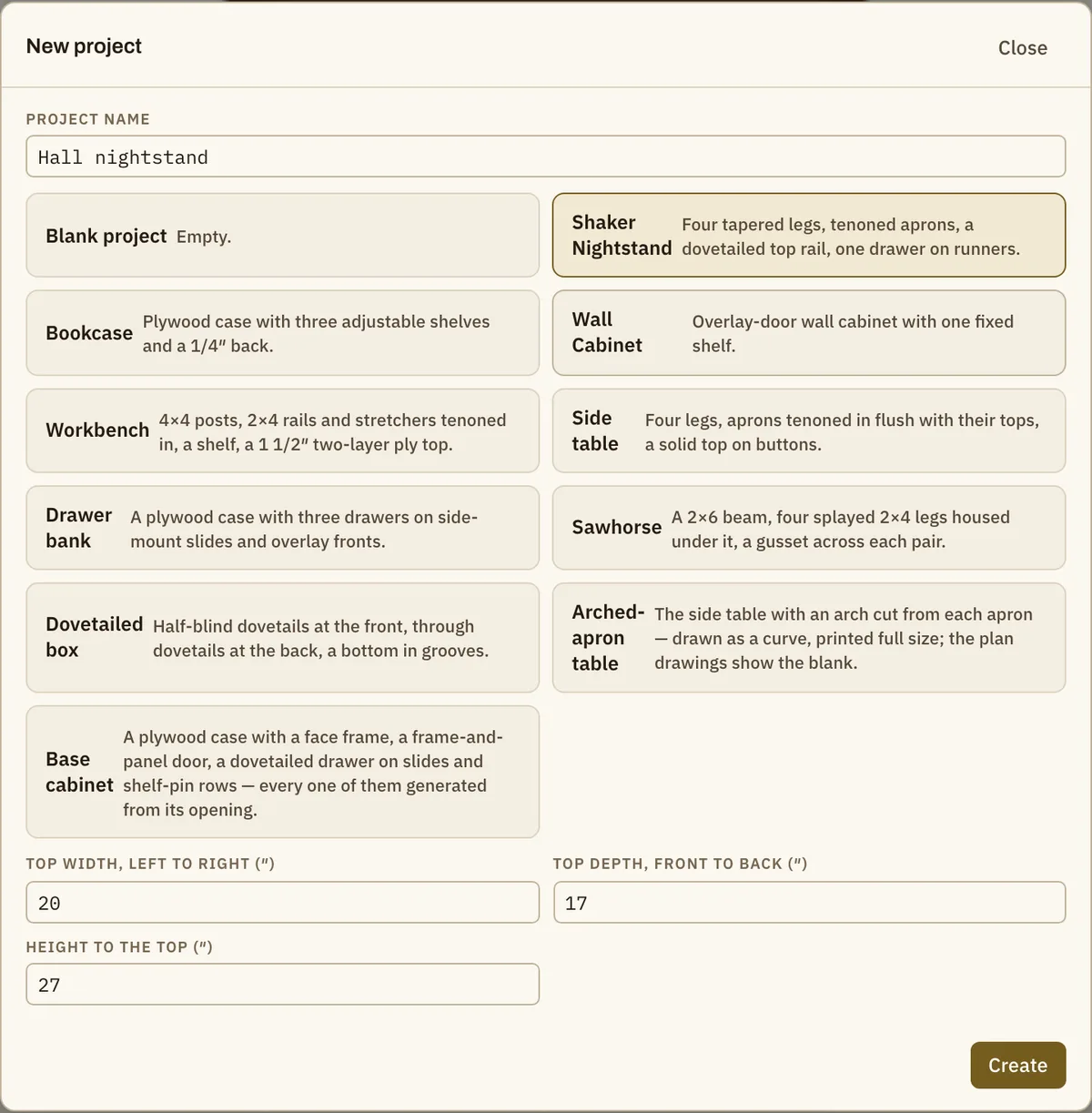
The templates
| Template | What’s in it |
|---|---|
| Shaker Nightstand | Four tapered legs, tenoned aprons, a dovetailed top rail, one drawer on runners. |
| Bookcase | Plywood case with three adjustable shelves and a 1/4″ back. |
| Wall Cabinet | Overlay-door wall cabinet with one fixed shelf. |
| Workbench | 4×4 posts, 2×4 rails and stretchers tenoned in, a shelf, a 1 1/2″ two-layer ply top. |
| Side table | Four legs, aprons tenoned in flush with their tops, a solid top on buttons. |
| Drawer bank | A plywood case with three drawers on side-mount slides and overlay fronts. |
| Sawhorse | A 2×6 beam, four splayed 2×4 legs housed under it, a gusset across each pair. |
| Dovetailed box | Half-blind dovetails at the front, through dovetails at the back, a bottom in grooves. |
| Arched-apron table | The side table with an arch cut from each apron, printed full size. |
| Base cabinet | A plywood case with a face frame, a frame-and-panel door, a dovetailed drawer on slides and shelf-pin rows. |
Dovetailed box and Base cabinet have no size fields; change their parts directly.
Resize it later
A project made from a template keeps its sizes as named numbers. Change them any time:
- Stock tab, Parameters: type a new value and every part that uses it follows.
- Dimensions over the model: drag a dimension to resize, or click it to type.
Save it
Subscribed to sync, there’s nothing to do: your projects live in the app and save as you work, unless you chose to keep them as files. Without it, press ⌘S (Ctrl S on Windows). The first save asks where to put the .drawbore file. The Designer saves when you tell it to, and warns you before closing with unsaved changes.
Your first two projects are free. How the free projects work
Keep your own templates
Choose Save as template… in the Project menu. Your templates appear after the built-in ones in New.